Pantani · Books
Ebooks & audiobooks
Ask for an audiobook or an ebook, and a few minutes later it's in your library, ready on your phone or eReader. Here are the three apps that make that happen.

Istruitevi, perché avremo bisogno di tutta la nostra intelligenza.
Agitatevi, perché avremo bisogno di tutto il nostro entusiasmo.
Organizzatevi, perché avremo bisogno di tutta la nostra forza.
Get started
- Ask me for access. Send me your email, your preferred username, and whether you want to log in with a Pangolin account or with an email code. I'll set up your access and your Shelfmark and Audiobookshelf accounts, and send you your passwords and the two header values your phone app needs.More in Pangolin ↓
- Log in to Audiobookshelf in your browser. Pangolin shows a login page first: use the User tab for your account, or the Email tab to get a code by email. You only do this once every 90 days. Then log in with your Audiobookshelf username and password. Optional: if you have a Kindle or other eReader, add it under Settings, E-Reader so you can send ebooks to it.More in Pangolin and Sending books to your eReader ↓
- Register a new account on ReadMeABook, then tell me so I can approve you.More in ReadMeABook ↓
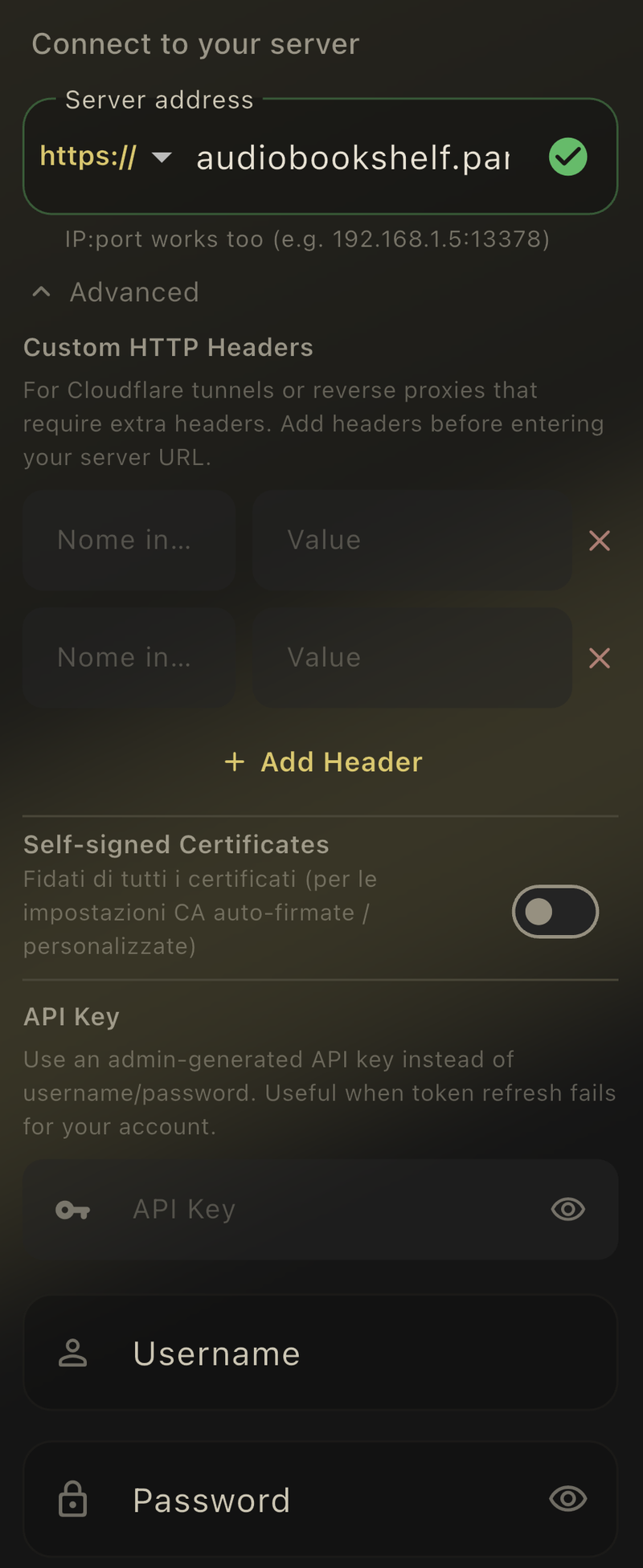
- Install Absorb (Android, iOS) to listen. On its connection screen open Advanced, add the two headers
P-Access-Token-IdandP-Access-Tokenwith the values I sent you, then enter the serverhttps://audiobookshelf.pantani.zipand your Audiobookshelf login.More in Listening apps ↓ - Request an audiobook. In ReadMeABook, search for it, open its page and click Request Audiobook. A few minutes later it appears in Absorb.More in ReadMeABook ↓
- Get an ebook. In Shelfmark, search for it, pick an EPUB in your language and click the download arrow. It lands in the Ebooks library in Audiobookshelf. To read it on your Kindle or other eReader, send it from Absorb with Send to eReader.More in Shelfmark and Audiobookshelf ↓
- Optional: add ReadMeABook and Shelfmark to your home screen so they open like apps.More in Add to your phone ↓
Reference
The steps above are enough to get going. Tap a title to open the details.
Overview
ReadMeABook
Request any audiobook available on Audible and it lands in Audiobookshelf.
OpenShelfmark
Find and download ebooks straight into your library. It can also find audiobooks that are not on Audible.
Open- You request a book · ReadMeABook / Shelfmark
- The server finds & downloads it
- It's filed into the library
- You listen / read · Audiobookshelf
You only use the request apps to ask for a book. All the listening and reading happens in Audiobookshelf or your eReader.
Pangolin: the door to everything
Access
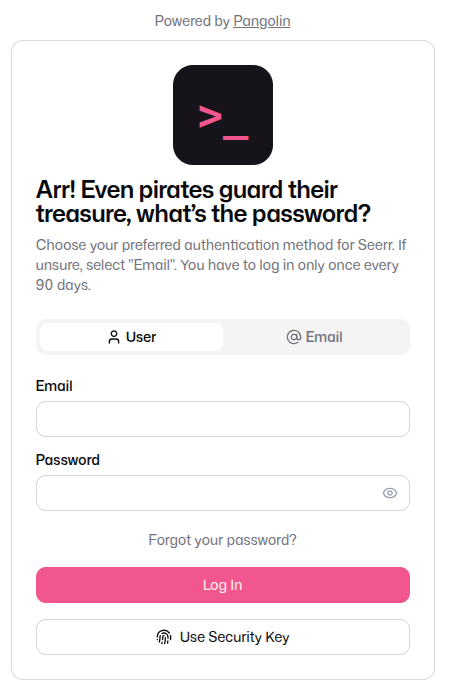
Pangolin is an extra security step that guards all the services: Seerr (the one you already know for movies and shows), ReadMeABook, Shelfmark and Audiobookshelf. Before a page opens, Pangolin checks that you're someone we know. You can prove it in three ways:
- Pangolin account (the easiest): log in once with your own account (SSO) and it works for all the services. Ask me and I'll create it for you.
- Code by email (no account): enter your email address, then type in the code Pangolin sends you. Ask me first, so I can add your email to the list.
- Special header (for apps): phone apps can't show a login page, so they pass the check in the background. See Listening apps below.
Pangolin remembers you, so you only have to log in once every 90 days. Even pirates guard their treasure, after all.
 1
2
1
2
ReadMeABook: audiobook requests
Audiobooks
ReadMeABook works like a shop where everything is free: you can request any audiobook available on Audible. Search by title, author or narrator, with covers, descriptions and series straight from Audible. When you request a book, the server:
- searches its sources for a good copy of that audiobook,
- downloads it in the background,
- renames and files it neatly into the audiobook library,
- tells Audiobookshelf to pick it up.
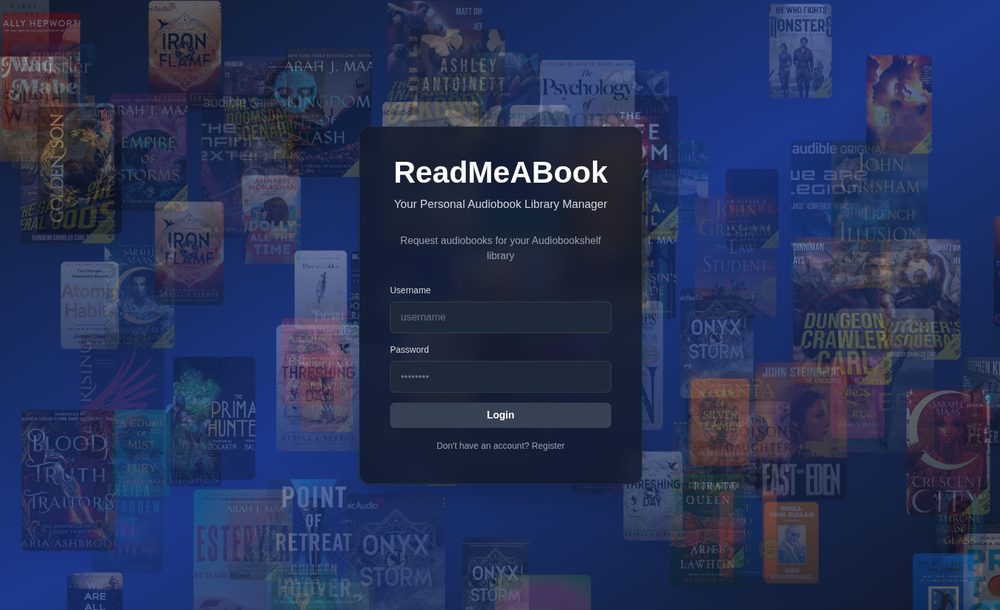
The first time, you need to create an account: open ReadMeABook and click Register on the login page. I have to approve your request, so tell me once you've registered. After that, you just log in with your username and password.
 1
1
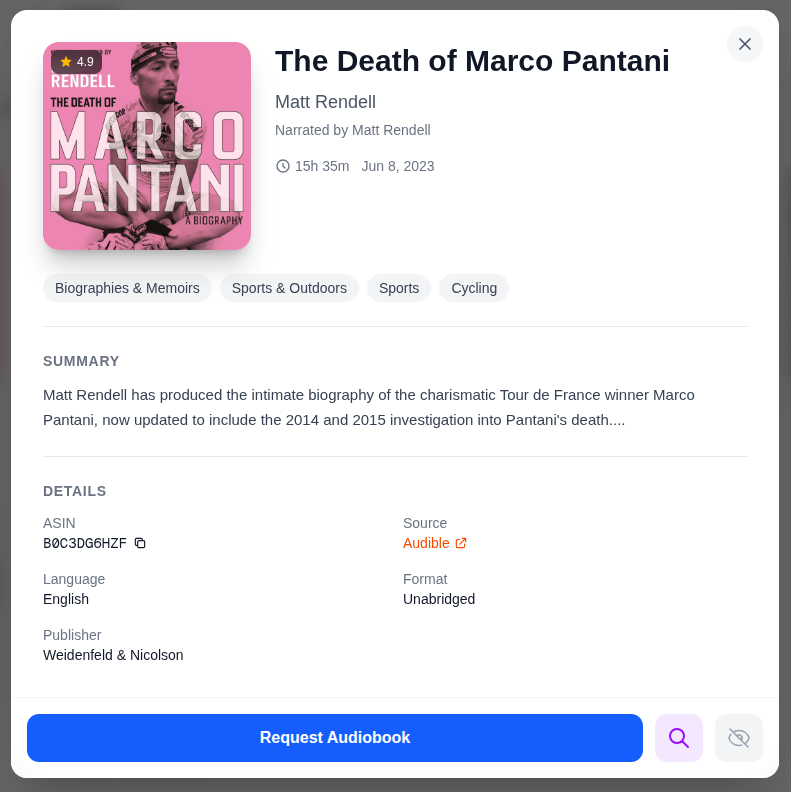
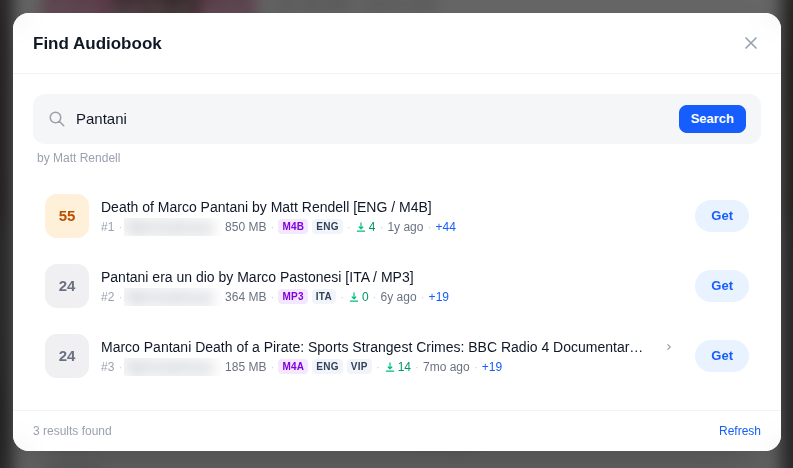
Then search for the book you want and click it to open its page. There are two ways to ask for it:
- Click Request Audiobook and let the system download the best match.
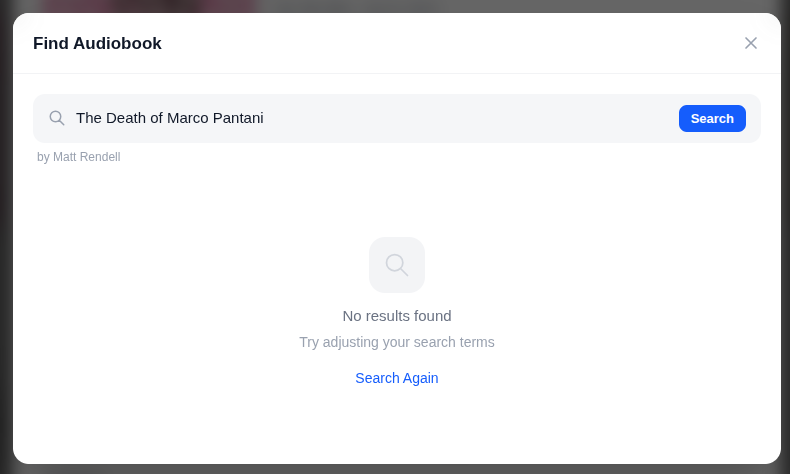
- Click the magnifying glass icon to see the available files and choose one yourself.
 1
2
1
2
 1
2
3
1
2
3
You can follow the progress on the Requests page. When it says it's available, open Audiobookshelf and the book will be there. This usually takes a few minutes. Rare or very new titles can take longer, or may not be found at all.
ReadMeABook has a couple of extra features: Goodreads auto-requests, which request the books on your Goodreads shelf for you (set it up from your profile), and BookDate, which gives you AI-powered book recommendations.
Shelfmark: ebooks
Ebooks
Your Shelfmark account is already set up: I sent you the username and password when you first got in touch. If you lost them, just ask.
Finding a book
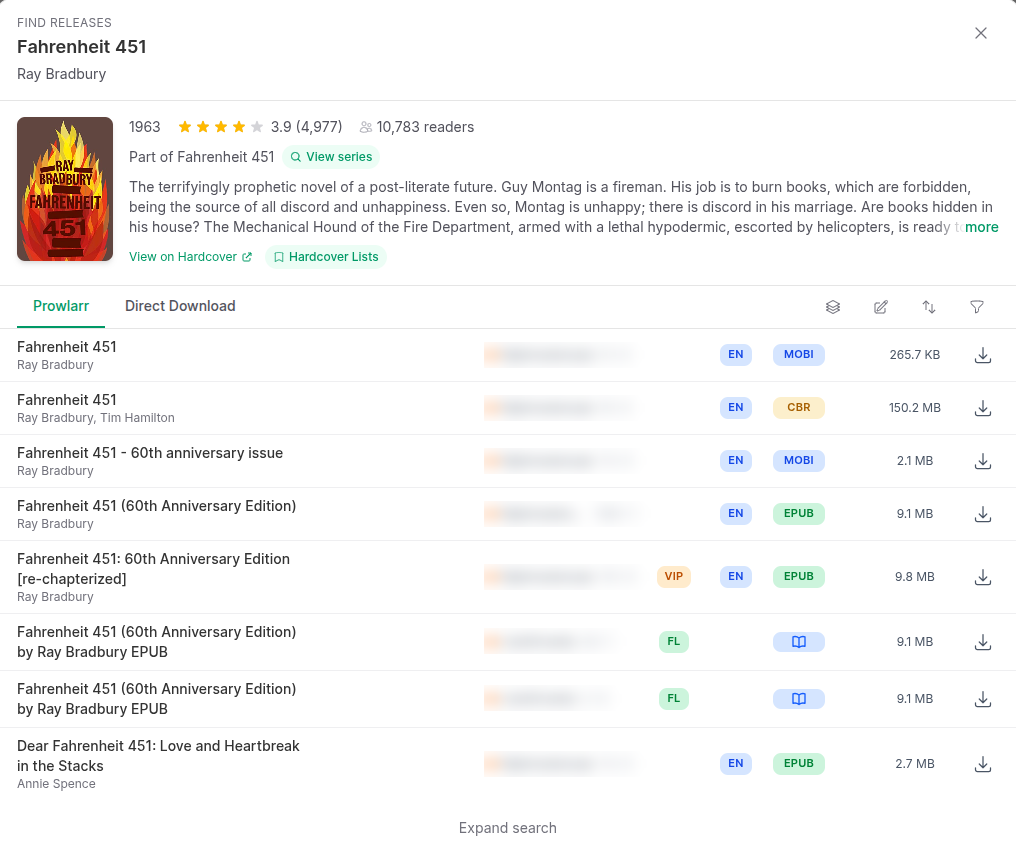
Shelfmark searches several large ebook sources at once. Type a title or author, choose a result, and download it. Check the language and the format first.
 1
2
3
4
5
1
2
3
4
5
Pick EPUB when you can. It works almost everywhere, Kindle included. PDFs are best saved for textbooks and comics.
Shelfmark can also look for audiobooks. Use it when ReadMeABook can't help because the book isn't on Audible, for example older, niche or self-published titles. They are saved to the library like any other audiobook.
Where the book goes
Everything you download, audiobook or ebook, is saved to the library: ebooks land in the Ebooks library in Audiobookshelf, where you can read them in the browser or in an app. To read an ebook on your Kindle or other eReader, send it from Audiobookshelf. See Sending books to your eReader.
Audiobookshelf: our shared library
Library
Your Audiobookshelf account is already set up too: I sent you the username and password when you first got in touch. If you lost them, just ask.
Audiobookshelf is where everything ends up. It has two libraries: Audiobooks and Ebooks. It's your own private Audible, with no subscription and no credits to run out:
- it remembers where you stopped, and keeps your place in sync across phone, tablet and browser,
- it groups books by series, author and narrator, and tracks what you've finished,
- it lets you change playback speed and set a sleep timer, and it adds chapters and bookmarks,
- it lets you download books to your phone to listen offline, perfect for long rides,
- it has a built-in reader for ebooks.
You can use it from the website, but on a phone it's much better to install an app. See Listening apps below.
Sending books to your eReader
Audiobookshelf can email any ebook in the library to your Kindle or other eReader. First you need an eReader device in Audiobookshelf: it's just a name and the email address of your reader. You set it up once, then sending a book takes two taps. Only files smaller than 3.2 MB can be sent this way.
1. Get your eReader's email address
- Kindle:
- Find the address. On Amazon, open the Devices page in Manage Your Content and Devices and select your Kindle. Its Send-to-Kindle E-Mail address ends in
@kindle.com. (If you use another Amazon site, such as amazon.com or amazon.de, use the same page there.) - Approve the sender. Open the Preferences page and scroll down to Personal Document Settings. Under Approved Personal Document E-mail List, click Add a new approved e-mail address and enter the sender address
noreply@pantani.zip. Without this, Amazon silently throws the books away.
- Find the address. On Amazon, open the Devices page in Manage Your Content and Devices and select your Kindle. Its Send-to-Kindle E-Mail address ends in
- PocketBook: on the reader, open Settings, Accounts and synchronization, Send-to-PocketBook and sign in. You get an address ending in
@pbsync.com. The first time a book arrives, PocketBook emails you a link to approve the sender (noreply@pantani.zip): click Add to whitelist. - Kobo can't receive books by email directly. A few models can do it through a paid Dropbox account, but for most people it's easier to download the file from Audiobookshelf and transfer it to the reader.
2. Add the device in Audiobookshelf
- Open Audiobookshelf in a browser and log in.
- Go to Settings, then E-Reader, and click Add New E-Reader.
- Give it a name (for example Marco's Kindle) and enter the email address.
- Under availability, choose who can use the device (just you, in most cases), then save.
3. Send a book from Absorb
- Open the ebook in the Ebooks library.
- Open the book's menu and tap Send to eReader.
- Choose your device. The book should show up in your reader's library in a few minutes, as long as it's connected to Wi-Fi.
Absorb is just an example: the official Audiobookshelf app and the website have the same option on the ebook's page. Send EPUB files where you can, as they convert best.
Add ReadMeABook & Shelfmark to your phone
ReadMeABook and Shelfmark don't have apps in the App Store or Play Store, and they don't need them. You can add them to your home screen as web apps. They'll get their own icon and open full-screen, like a normal app.
- Open the link in Safari. Other browsers on iOS may not show the option.
- Log in once.
- Tap the Share button (the square with an arrow pointing up).
- Scroll down and tap Add to Home Screen.
- Keep or change the name, then tap Add.
- Open the link in Chrome.
- Log in once.
- Tap the ⋮ menu in the top-right corner.
- Tap Add to Home screen (sometimes called Install app).
- Confirm with Add / Install.
Do this twice: once for ReadMeABook and once for Shelfmark.
Listening apps for Audiobookshelf
Audiobookshelf is open, so lots of apps can connect to it, from the official one to independent apps with different designs and features. They all work the same way:
- Install an app from the list below.
- Add the Pangolin headers (see below).
- When it asks for a server address, enter
https://audiobookshelf.pantani.zip. - Log in with your Audiobookshelf username and password.
Your progress is stored on the server, not in the app. You can switch apps, or use several at once, without losing your place.
- Absorb RecommendedModern, easy to use audiobook player, and the one I recommend. Download books for offline listening and send ebooks to your eReader. Pick this one if you are unsure.Android · iOS
- Audiobookshelf OfficialMade by the same team as the server, so it has every feature: offline downloads, a built-in ebook reader, podcasts and Android Auto. Less polished than Absorb, but the most complete.Android · iOS
- LissenLight, clean player that only does one thing: listening to audiobooks. A good choice on Android if you want something simple.Android
- PrologueAudiobook player for iPhone, also compatible with Audiobookshelf. Focused on listening, with no ebook reader.iOS
- AuriBookApple Watch only: download books and listen from your wrist without your iPhone. Use it together with another app on your phone, not instead of it.Apple Watch
- Web browserJust open audiobookshelf.pantani.zip. Handy on a computer and for reading ebooks.Anything
For an up-to-date list of other options, see the community apps list.
Absorb and the Pangolin check: this is where the header goes. Absorb is just an example: other apps should work in a similar way. On the connection screen, fill it in before entering the server address.
 1
2
3
4
1
2
3
4
P-Access-Token-Id and the second P-Access-Token. The values are the ones I sent you. 3. Then enter the server address. 4. Type your Audiobookshelf username and password here (leave API Key empty).